Playing your first song
Table of contents
Song select
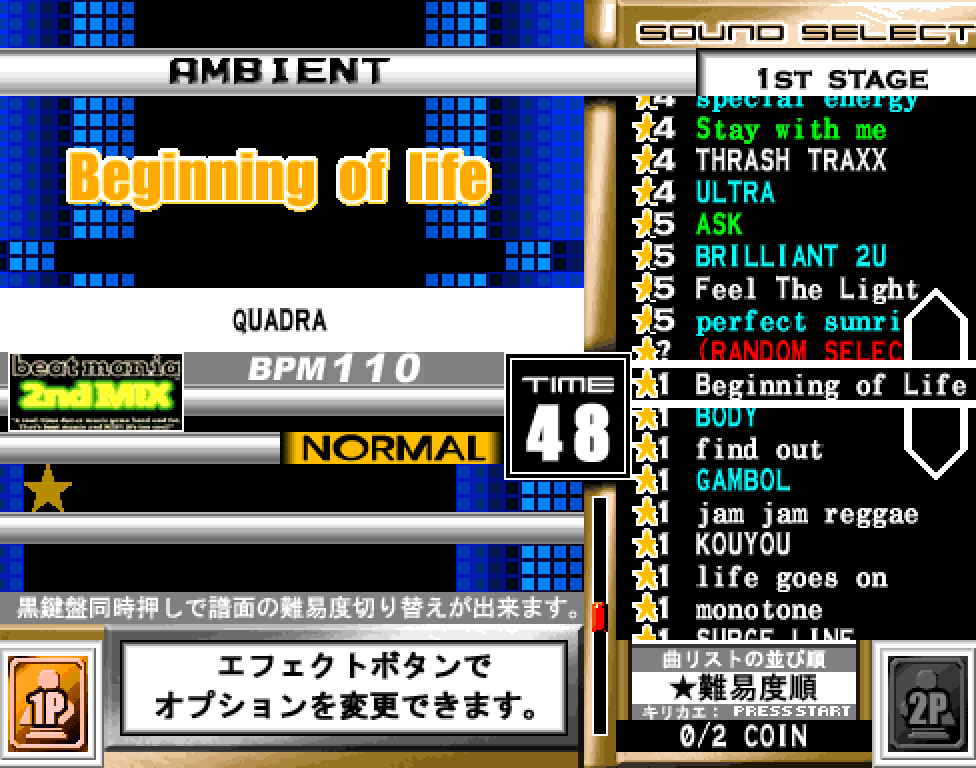
Controls
Basic controls
- Turntable scrolls through the list.
- White key starts the currently highlighted song.
- Pressing both black keys at the same time changes the difficulty.
Additional controls
- Press Start changes the sorting order. (Only applicable to 6thMIX, 7thMIX and FINAL)
- Press and hold the Effect button to open the modifier menu. Explained later in more detail. (Not available in anything before completeMIX 2, and some later games)
Choosing your first song
Use the turntable to scroll through the songs, and press one of the white keys to confirm (a single tap will immediately start the song!).
The song select screen is in one giant list, unlike IIDX and other modern rhythm games, and is initially sorted by difficulty from easiest to hardest, in alphabetical order. It’s recommended to start that you pick songs rated level 1-2 if you’re just starting out, scrolling down the list for more songs in that level range. If you want to play harder songs in this sort, you can scroll further up the list.
Songs highlighted in blue are new songs in beatmania THE FINAL, and songs highlighted in green are revivals/crossovers from beatmania III.
If you want to change the song sort, press the Start button. The three sorts available are difficulty (the one you start on), title (in order from A-Z), and game version (from oldest to newest).
Regarding chart difficulties
- Each chart is rated from 1-9; if you’re just starting, stick to levels 1-2.
- Each song can have up to three charts with different difficulties: normal, hard, and another. You can press both black keys to switch between difficulties, but if you’re just starting, you’ll likely want to stick to normal difficulty.
Changing hi-speed
If you’re familiar with other rhythm games, you may be wondering how to increase the scroll speed.
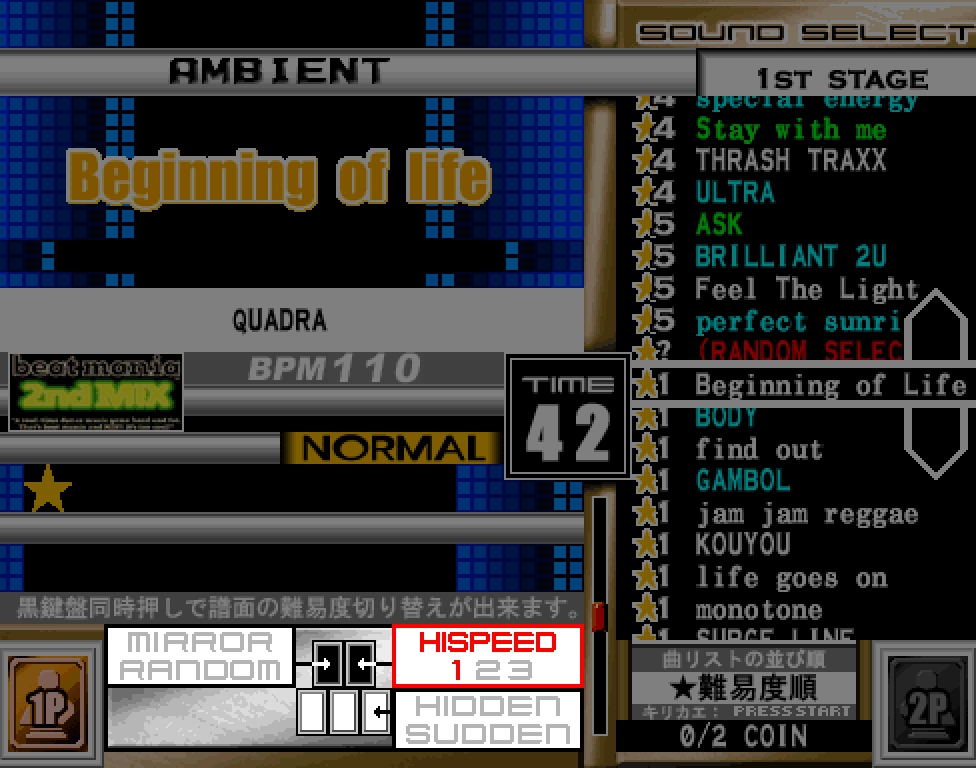
Before selecting a song, or before you start your credit, you can open the modifier menu by pressing and holding Effect (or just pressing it on the title screen), and press the rightmost black key to change between hi-speed 1, 2, and 3.
Unlike most modern rhythm games, this is all you get; in most cases, hi-speed 1 or 2 is usually what you want. If you are especially good at reading at high speeds, hi-speed 3 may be desirable. There are other hidden quirks with scroll speed that will be taught later on, but they aren’t important now.
For now, if you’re completely new, just leave it alone unless you really think you need it.